
Overview
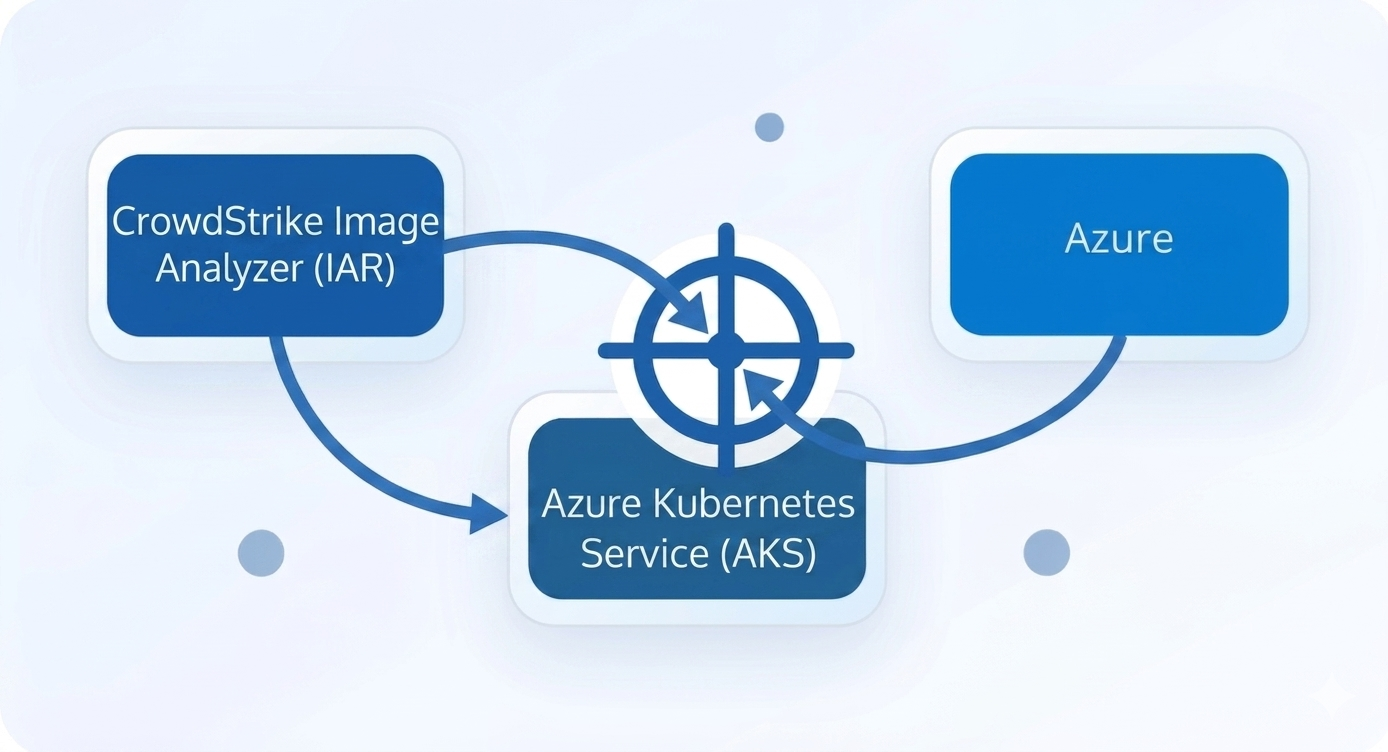
This tutorial covers the clean deployment of CrowdStrike Falcon IAR (Image Analyzer at Runtime) on Azure Kubernetes Service. It focuses on PowerShell usage, WSL interaction, Helm values creation, and deployment verification.
Pre-Requisites
Before you begin, make sure you have the following ready:
- Azure Kubernetes Service (AKS) cluster accessible from your workstation
- PowerShell installed locally
- WSL enabled to run the CrowdStrike pull script
- CrowdStrike Falcon credentials: FALCON_CLIENT_ID and FALCON_CLIENT_SECRET
- Helm configured for your AKS cluster
kubectlauthenticated for the target AKS namespace
Step 1: Download Crowdstrike Falcon Script
Download the CrowdStrike Falcon Sensor deployment script from the official repository. It interacts with the CrowdStrike API to authenticate, fetch, and pull the latest Falcon Container Sensor image directly from CrowdStrike’s private container registry into your local environment.
Invoke-WebRequest `
  -Uri "https://github.com/CrowdStrike/falcon-scripts/releases/latest/download/falcon-container-sensor-pull.sh" `
  -OutFile "falcon-container-sensor-pull.sh"
Change permission to make it executable:
wsl chmod +x falcon-container-sensor-pull.shStep 2: Remove Old Polluted Variables
Clear any stale environment variables from previous deployments before regenerating new values.
Remove-Variable FALCON_CID -ErrorAction SilentlyContinue

Remove-Variable FALCON_IAR_FULL_PATH -ErrorAction SilentlyContinue

Remove-Variable FALCON_IAR_IMAGE_REPO -ErrorAction SilentlyContinue

Remove-Variable FALCON_IAR_IMAGE_TAG -ErrorAction SilentlyContinue

Remove-Variable FALCON_IAR_IMAGE_PULL_TOKEN -ErrorAction SilentlyContinue
Step 3: Declare Falcon IAR Credentials
Declare fresh CrowdStrike IAR credentials so the deployment uses the correct client ID and secret.
$env:FALCON_CLIENT_ID="YOUR_CLIENT_ID"

$env:FALCON_CLIENT_SECRET="YOUR_CLIENT_SECRET"
Step 4: Regenerate IAR Values
Use the Falcon pull script to fetch the IAR CID, image path, and registry token from the CrowdStrike API.
$FALCON_CID = wsl bash -c "./falcon-container-sensor-pull.sh -u $env:FALCON_CLIENT_ID -s $env:FALCON_CLIENT_SECRET -t falcon-imageanalyzer --get-cid"

$FALCON_IAR_IMAGE_FULL_PATH = wsl bash -c "./falcon-container-sensor-pull.sh -u $env:FALCON_CLIENT_ID -s $env:FALCON_CLIENT_SECRET -t falcon-imageanalyzer --get-image-path"

$FALCON_IAR_IMAGE_PULL_TOKEN = wsl bash -c "./falcon-container-sensor-pull.sh -u $env:FALCON_CLIENT_ID -s $env:FALCON_CLIENT_SECRET -t falcon-imageanalyzer --get-pull-token"
Verify the generated values:
$FALCON_CID

$FALCON_IAR_IMAGE_FULL_PATH

$FALCON_IAR_IMAGE_PULL_TOKEN
Step 5: Split Image Repo and Tag
Extract the repository and tag from the full image path so they can be used by Helm.
$FALCON_IAR_IMAGE_REPO = $FALCON_IAR_IMAGE_FULL_PATH.Split(":")[0]

$FALCON_IAR_IMAGE_TAG = $FALCON_IAR_IMAGE_FULL_PATH.Split(":")[1]
Step 6: Define Cluster and Region
Set your AKS cluster name and region. The region should match your CrowdStrike tenant base URL.
$FALCON_IAR_CLUSTER_NAME="YOUR_CLUSTER_NAME"

$FALCON_CLOUD_ENV="us-2"
Step 7: Create the Helm Values File
Generate the Helm values file with the validated credentials, cluster settings, and image metadata.
@"
deployment:
  enabled: true
crowdstrikeConfig:
  cid: "$FALCON_CID"
  clusterName: "$FALCON_IAR_CLUSTER_NAME"
  clientID: "$env:FALCON_CLIENT_ID"
  clientSecret: "$env:FALCON_CLIENT_SECRET"
  agentRegion: "$FALCON_CLOUD_ENV"
image:
  registryConfigJSON: "$FALCON_IAR_IMAGE_PULL_TOKEN"
  repository: "$FALCON_IAR_IMAGE_REPO"
  tag: "$FALCON_IAR_IMAGE_TAG"
"@ | Out-File falcon-iar-values.yaml -Encoding utf8
Confirm the generated file:
Get-Content falcon-iar-values.yamlStep 8: Deploy Falcon IAR on AKS
Install or upgrade the Falcon IAR Helm chart into its own namespace.
helm upgrade --install iar crowdstrike/falcon-image-analyzer `
  -n falcon-image-analyzer --create-namespace `
  -f falcon-iar-values.yaml
Step 9: Verify Deployment
Validate the deployment and inspect the pod state and logs.
kubectl get pods -n falcon-image-analyzer -o wideDescribe the deployment pod to confirm readiness and events:
kubectl describe pod <falcon-iar-pod-name> -n falcon-image-analyzerView the IAR pod logs:
kubectl logs <falcon-iar-pod-name> -n falcon-image-analyzerNeed deployment support?
Contact us for expert help deploying CrowdStrike Falcon IAR on AKS.
Important Notes
- Use dedicated IAR credentials to avoid conflicts with Falcon Sensor or KAC deployments.
- If deployment fails, verify
falcon-iar-values.yamland ensure the image path, tag, and registry token are correct. - Confirm the namespace exists with
kubectl get namespace falcon-image-analyzer.